Everything you know and love from the Fenix7 Pro Analog taken to a whole new level
- Download for Garmin Weather (free and pro)
- Download for Open Weather Map (free and pro)
- Download for Garmin Weather (with purchase through the Connect IQ store)
- Product Page on my Website
I’m thrilled to announce the release of my latest watch face, the Fenix8 Pro Analog! More than just a visual upgrade from the Fenix7 Pro Analog, this version introduces many highly requested new features.
Over the past month, I’ve gathered valuable feedback from you, my amazing users, and worked hard to incorporate the most in-demand enhancements. In this post, I’ll walk you through the exciting new features debuting with this release, as well as highlight some existing ones you might have missed.
Load Save Presets
Many users have asked whether it’s possible to save and load color and data settings, as well as reset the watch face to its default settings. I’m excited to share that this functionality is now available!
With the Connect IQ app and on-watch settings, you can easily save and load presets. When loading a preset, you can choose whether to apply only color settings, only data settings, or both. However, when saving a preset, both color and data settings are always stored together.
Scaleable Fonts
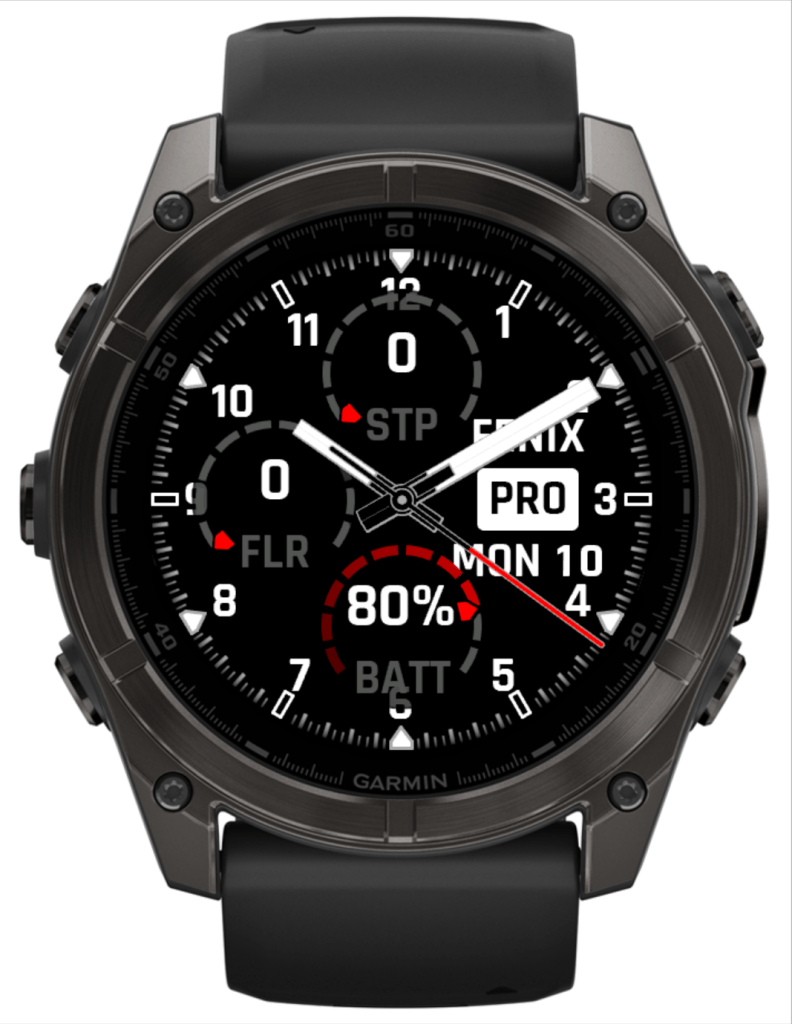
Many users have requested this feature, and it’s finally here! You can now choose from three custom fonts, all system fixed-size fonts, and system scalable fonts.
Customize the font separately for data, captions, and time to match your style. If you select a scalable font, you’ll also have an additional setting to adjust the text size for even more flexibility.

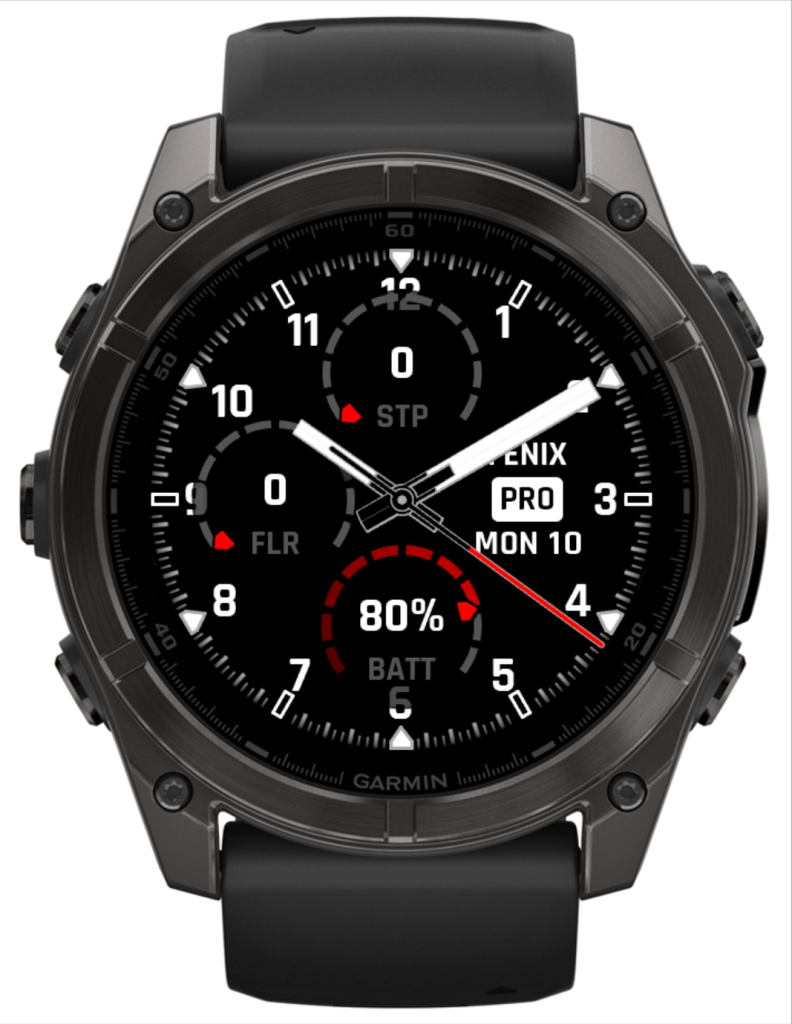

Hand Styles
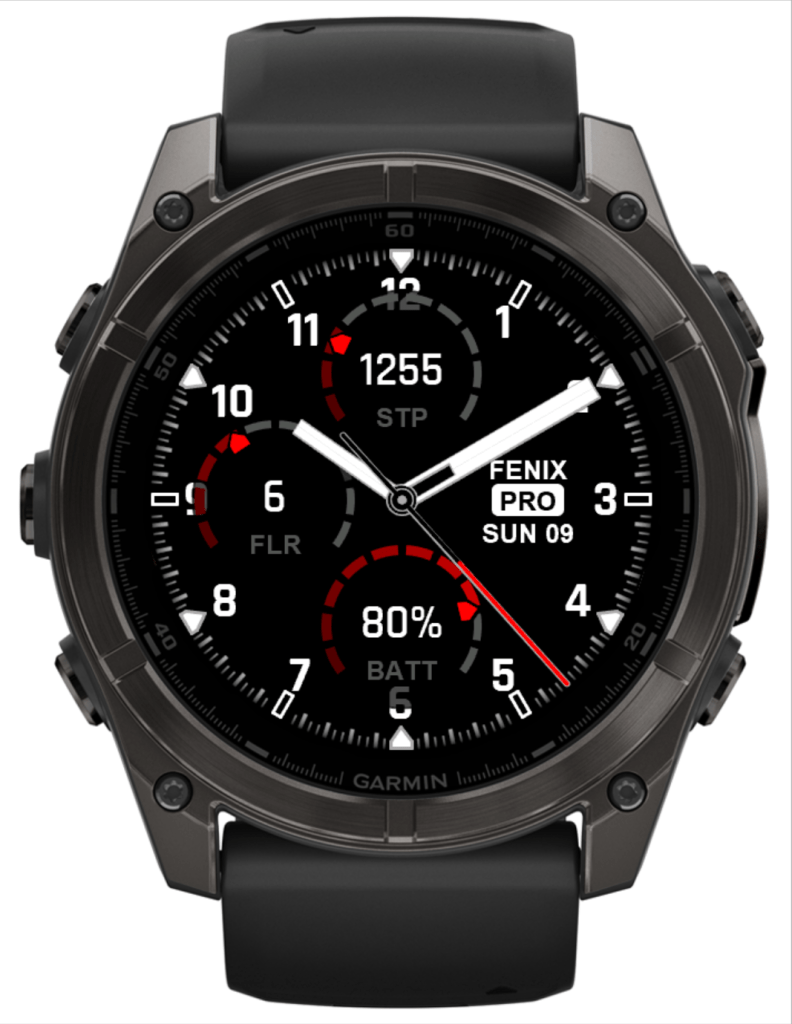
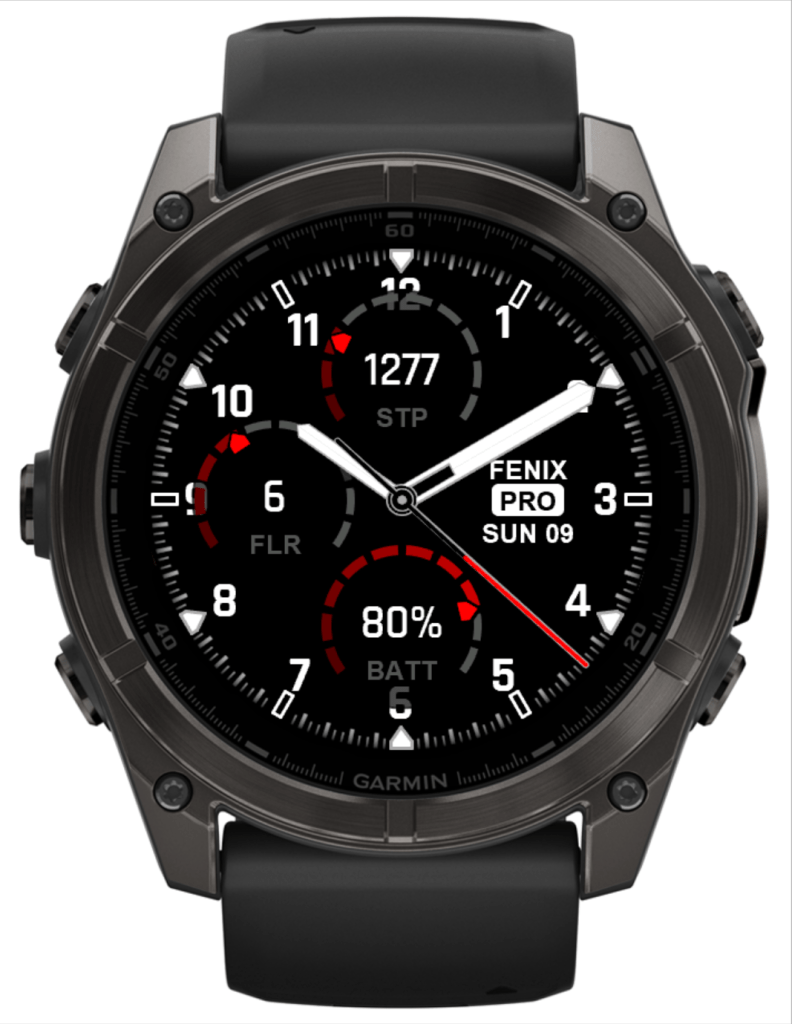
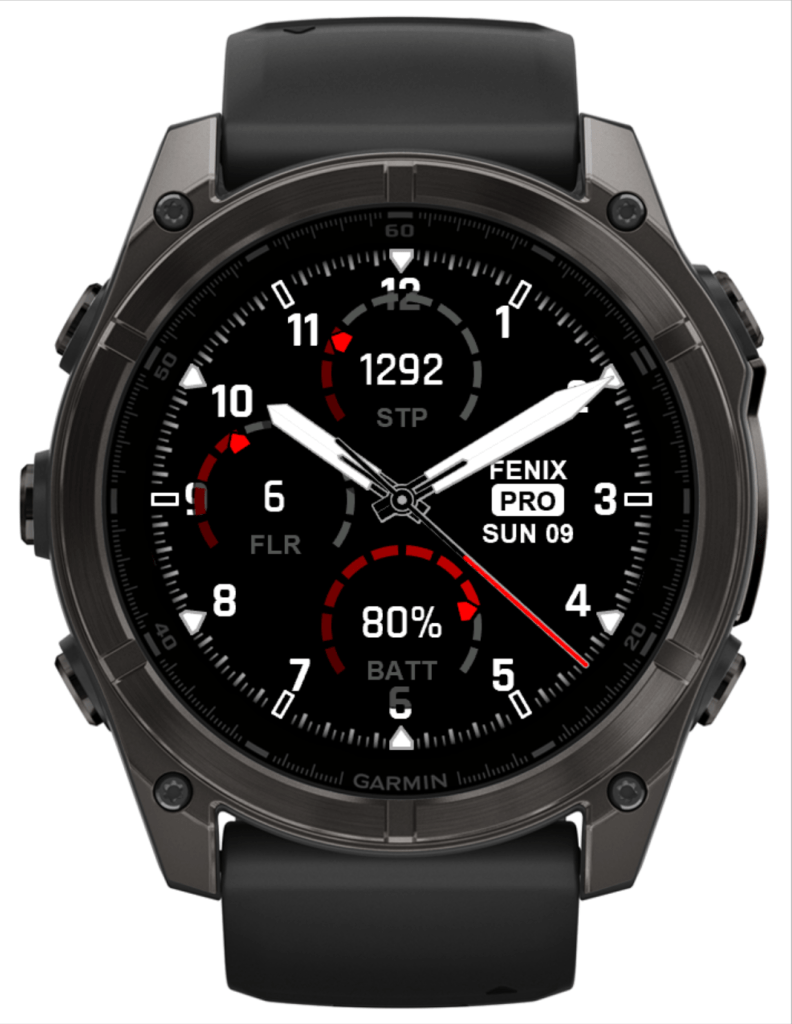
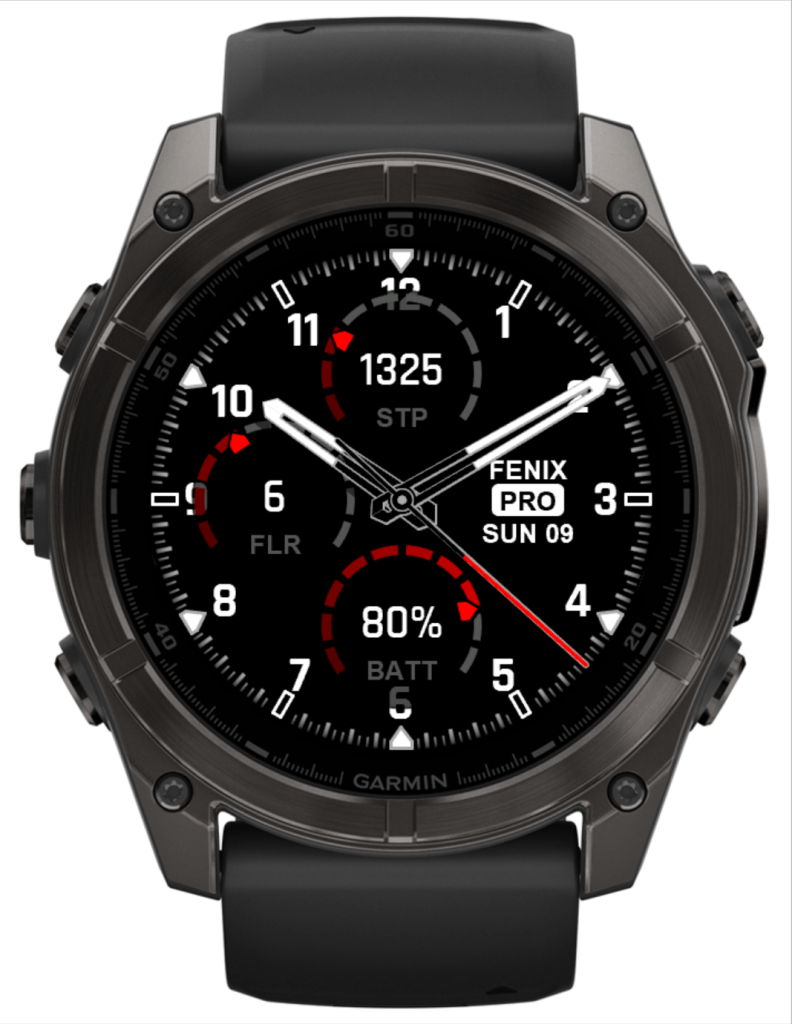
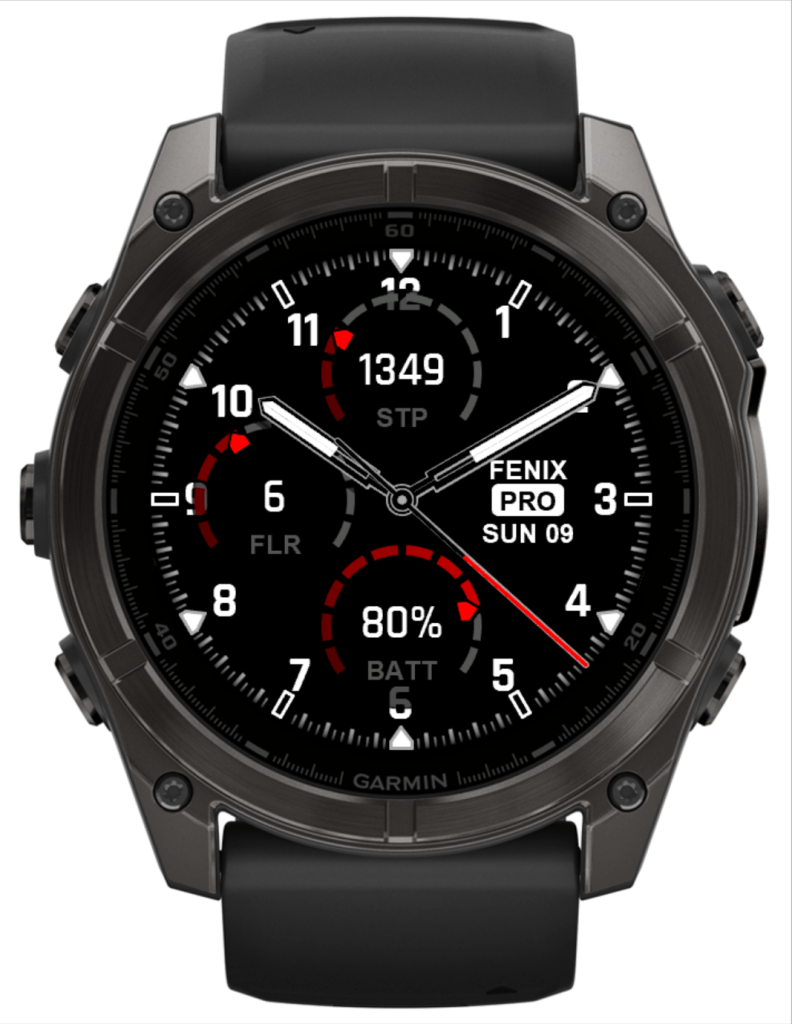
The hands of the Fenix7 Pro Analog sparked mixed reactions—some users love them, while others not so much. That’s why I’ve added 10 different hand styles to this watch face!
You’ll find classic designs from the MARQ2 series, as well as my own optimized take on the Fenix7 Pro Analog hands for AMOLED screens. Plus, you can now customize the inner hand color and outline color to match your personal style.
I hope everyone finds their perfect look! If not, feel free to send me a sketch of your favorite style, and I’ll see if I can add it.



3D Effect and Drop Shadow
Speaking of watch hands…
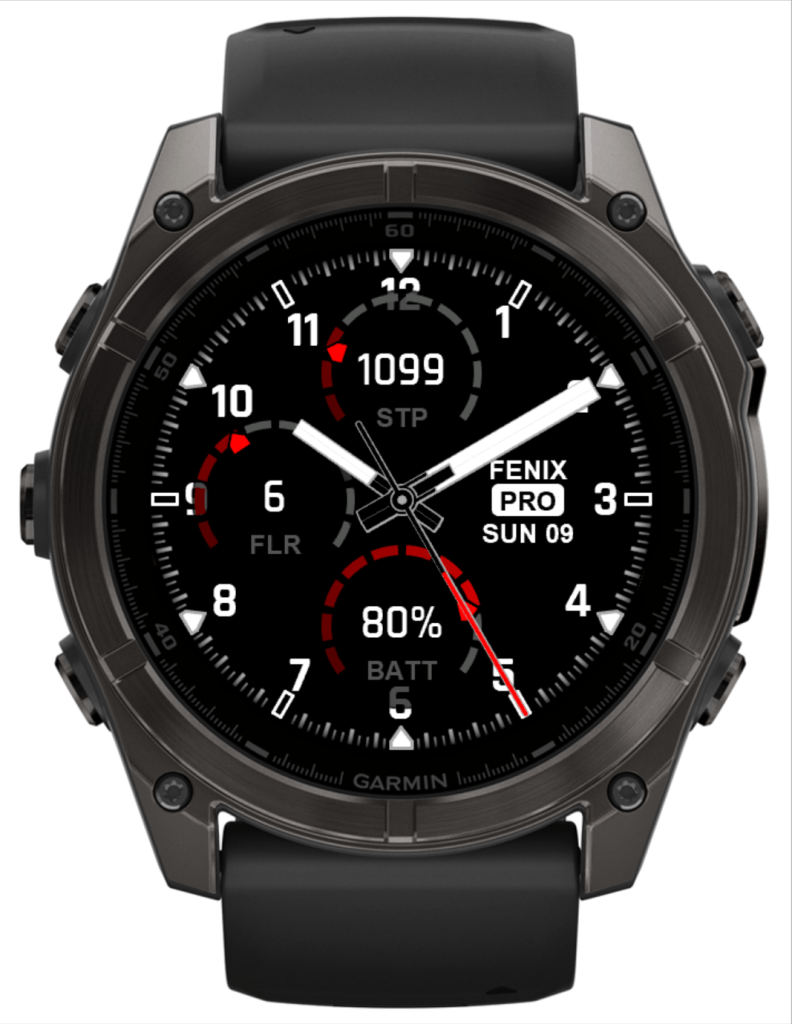
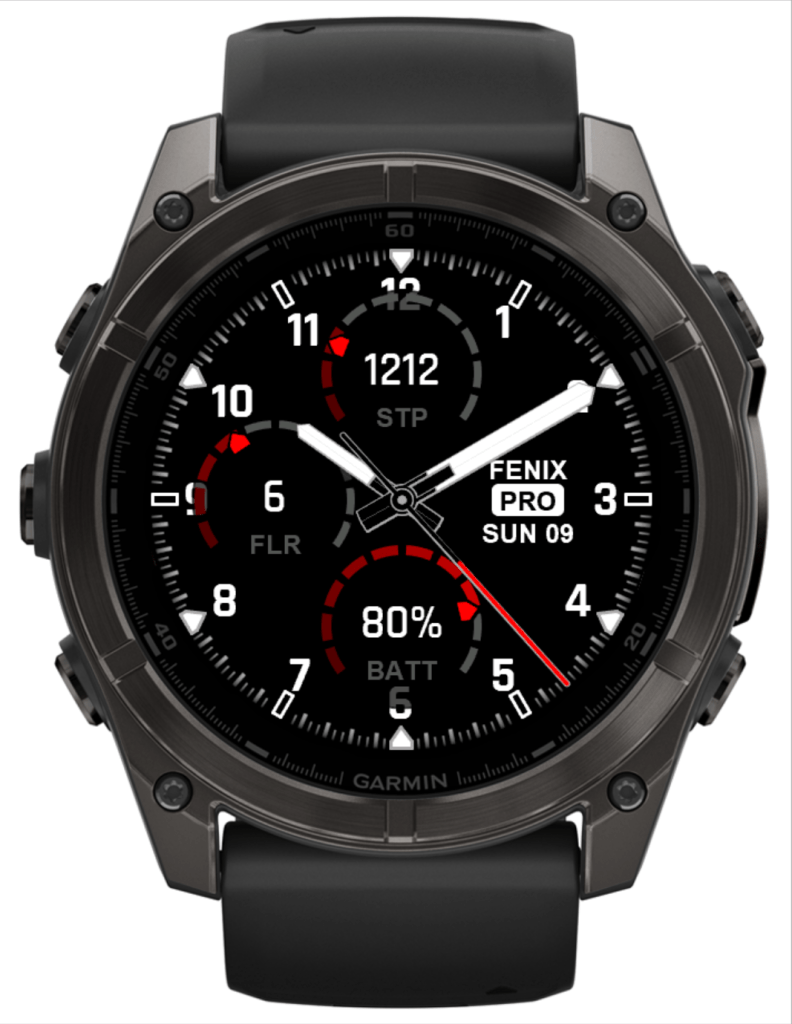
I’ve also added support for a 3D effect along with a sleek drop shadow, giving the watch face a more realistic and dynamic look. These enhancements bring extra depth and make the design feel even more refined on your wrist.


New Burn-in Protection Mode
My previous watch faces featured two burn-in protection modes: one that reduces pixel density and another that decreases the number of elements drawn.
With this release, I’m introducing a third option: Reduce Brightness. This new mode removes the background while rendering the rest of the watch face at a lower brightness to stay below the burn-in threshold.
You can fine-tune the brightness level in percentage, allowing you to find the perfect balance. In some cases, you may even be able to set it to 100% without the screen turning off in low-power mode. If the watch face does turn off, simply lower the brightness slightly and test again.


Full Color Support throughout the Watch Face
Until now, my watch faces supported the full 16-bit AMOLED color range only on the background layer. However, for many newer watch models, this limitation is no longer necessary.
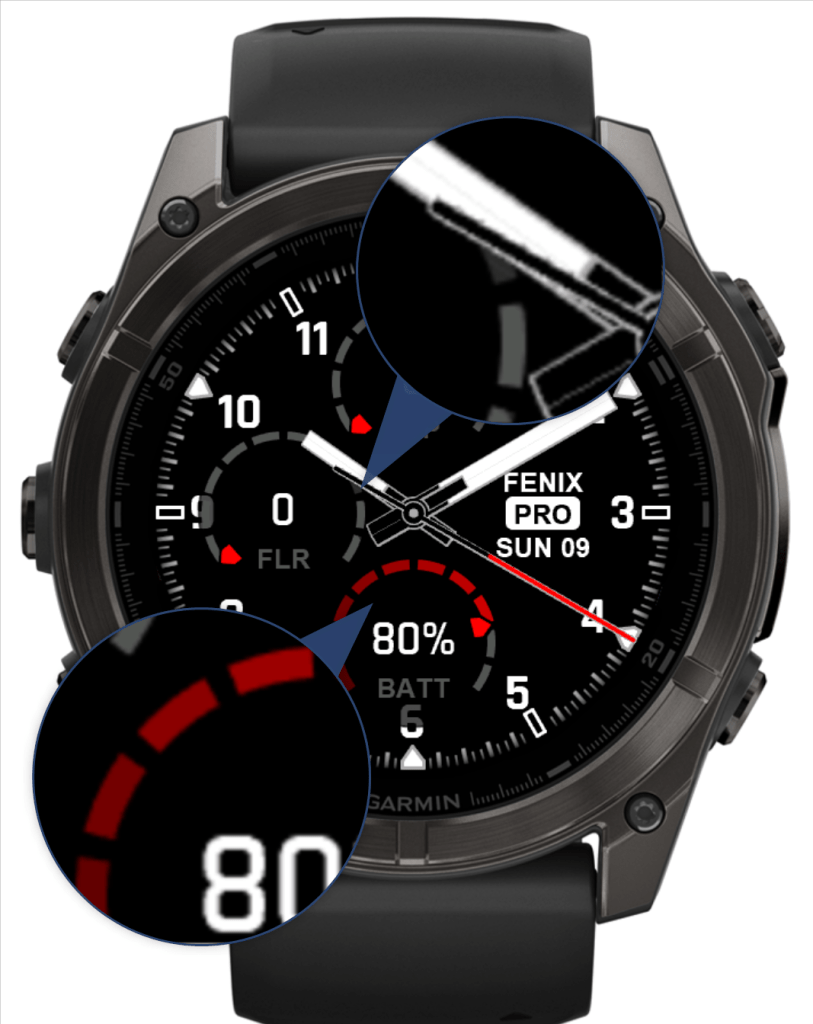
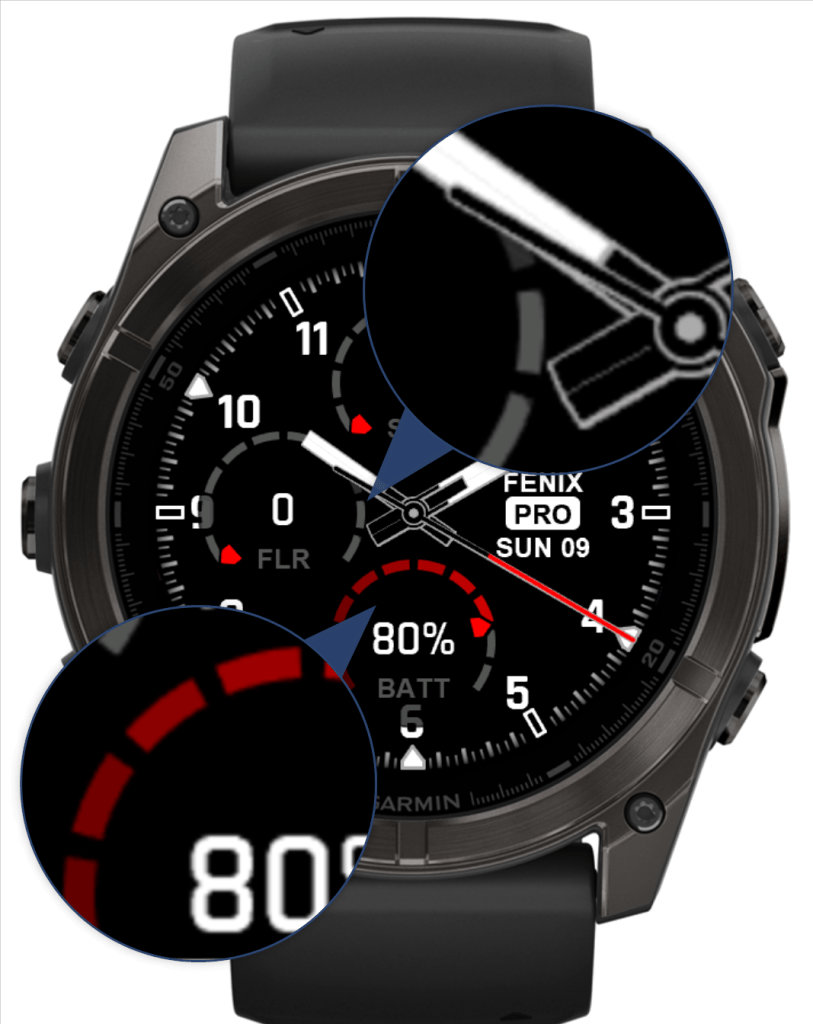
With this update, all layers now support the full color range, allowing for better color customization and significantly improved antialiasing. This means smoother visuals and more refined details across the entire watch face!
The images below showcase the watch face running with different “Drawing Mode” settings. The first image demonstrates “Layered”, followed by “Layered Better”, and finally “Layered Best”.
Keep in mind that not all watch models have enough memory to support “Layered Best”. If you experience app crashes where the watch displays the IQ logo, try reducing the drawing mode quality to ensure smooth performance.

Performance Showcase
On high-resolution AMOLED devices, efficient screen updates are crucial. A watch face that isn’t optimized for performance can cause lag when transitioning between low and high-power modes, turning the wrist, activating the torch, or navigating to widgets/glances.
I’ve put great effort into ensuring that my watch faces run as smoothly as possible, minimizing lag for a seamless user experience.
2 Color Icons
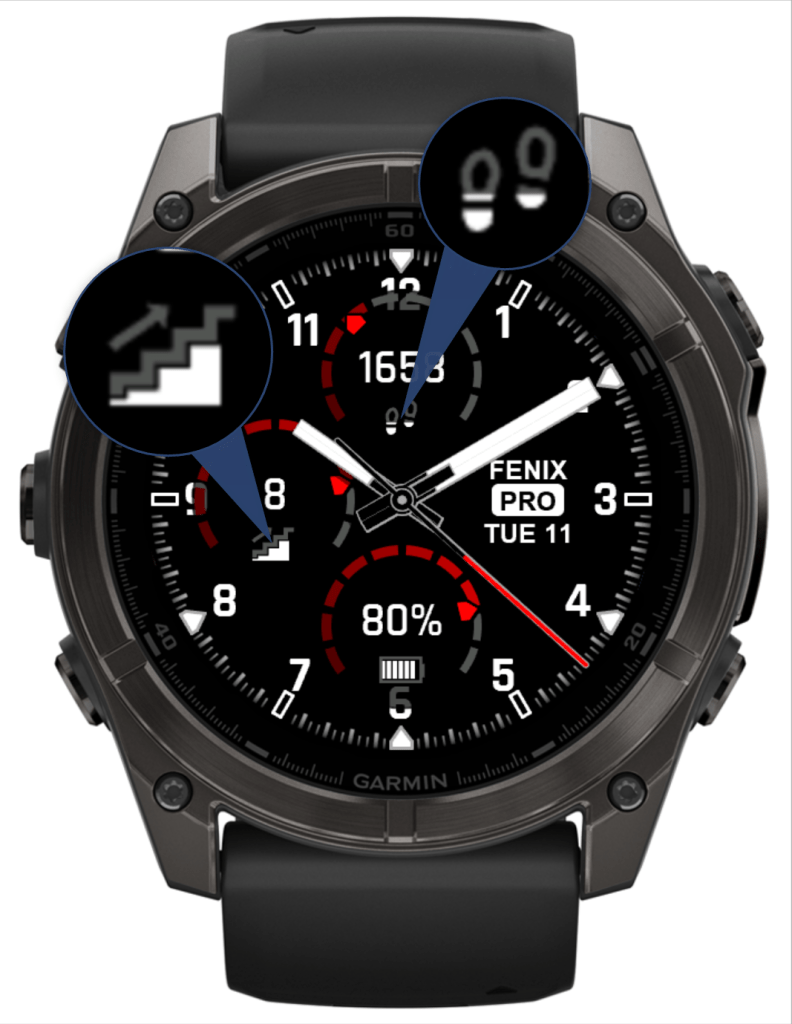
This watch face not only allows you to replace caption text with icons, but also lets you customize the icons in a two-color style.
Additionally, you can use the second color as a progress indicator, such as displaying your current daily steps in relation to your step goal. This adds both visual appeal and functionality to your watch face!

High Quality Minute Lines with Gradient and Support for Tinting
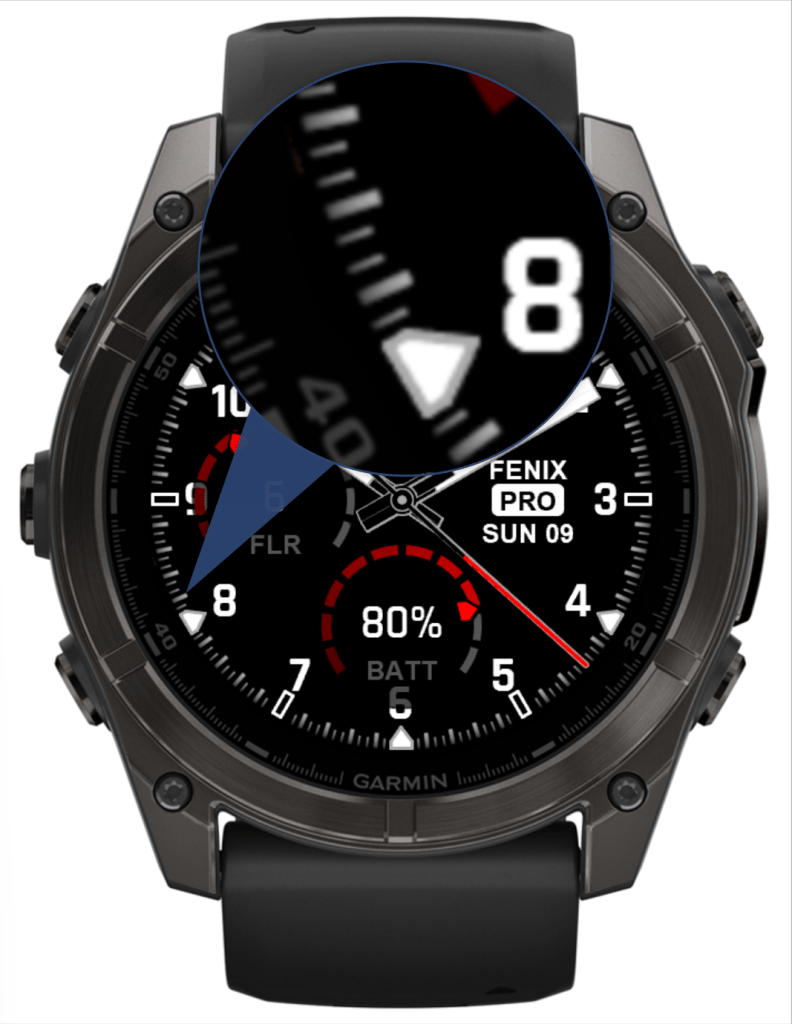
On high-resolution screens, minute lines drawn using regular line-drawing routines can often look rough and unrealistic, with spacing that may appear uneven in certain cases. To address this, I’ve opted for pre-rendered minute lines on this watch face.
These pre-rendered lines feature a beautiful color gradient, making them appear more realistic. Plus, recent watch models support tinting, so you can still customize the color of the minute lines to match your style!
Complications, Hold to Launch and Quick Launch
Did you know that you can integrate data from certain watch apps into my watch faces? This allows you to launch directly into the app, just like you can with built-in Garmin widgets.
Here’s a demo showing how it works, using my Open Weather Map app (available on the Connect IQ Store) as an example. This integration enhances the functionality of your watch face by giving you quick access to key app data!
In addition to launchable complications, you can also define a quick launch action that is triggered by pressing the middle of the screen.
Here’s a demo showing how this works, allowing you to quickly access your preferred action with a simple tap. It’s a great way to streamline your interactions and make your watch face even more functional!
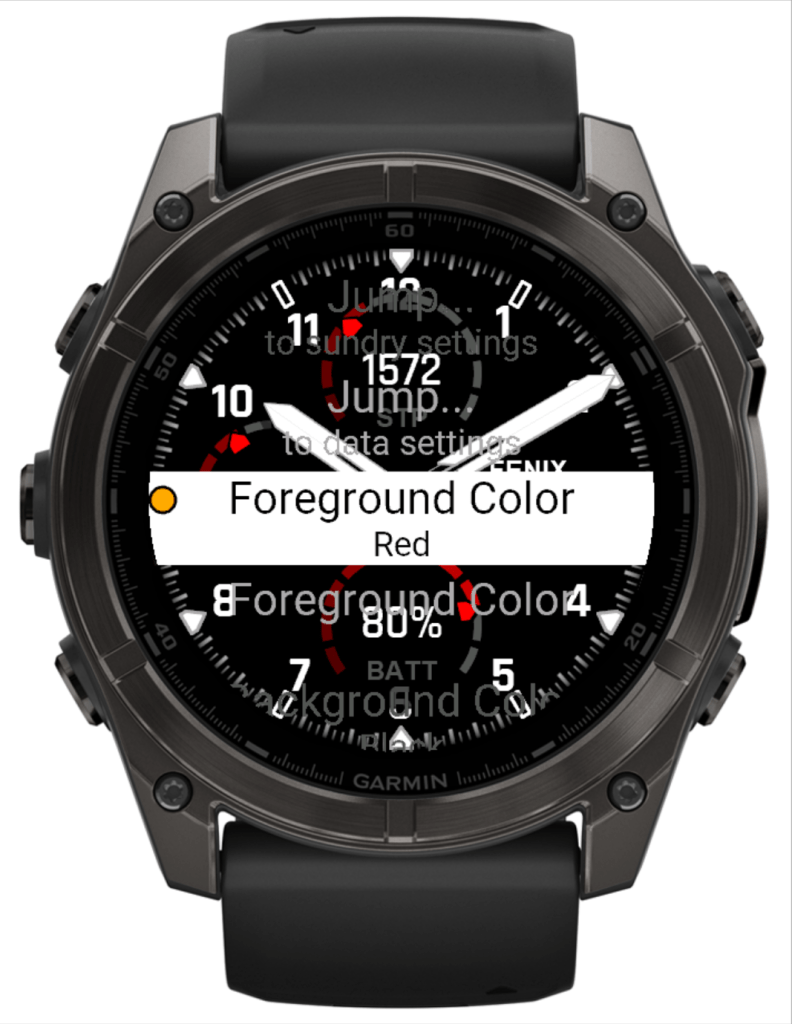
On Watch Settings With Live View
One of the standout features of my watch faces has been the on-watch settings with live view, which means you can make quick changes without needing to pull out your phone!
I’m excited to share that the settings for the new features, including scalable fonts, presets, and hand styles, are now also available directly in the on-watch settings. This makes it even easier to personalize your watch face on the go!
Last but not Least
I’m also thrilled to announce that these new features will be introduced to all my existing watch faces in the next update!
A huge thank you to all of you for supporting my efforts and for your valuable suggestions—I couldn’t have done it without you!
Stay tuned for even more exciting updates to come!
9 responses to “Fenix8 Pro Analog”
Nice! Thanks for all you do, Manuel!
How can i display weather data?
Rgds Roland
Please have a look at the manual:
https://apps.bliemel.net/manuals/
I am new to Garmin watches .
I have a fenix 8 amoled
I am not able to find this “live view” settings feature.
Could you please explain?
Thanks
Hi, you need to go to the watch face selection view. Select the Fenix8 Pro Analog with the start button or on the touch screen using the pencil symbol in the top right corner. Then select customize. Once you are in the settings menu you can switch to the live view by long pressing the menu button. Repeat long pressing the menu button to cycle through the available live view modes.
Hey, I spent an embarring amount of money on many of your watch faces. Just wanted to say thank you for what you do and how you actually really seem to care.
Thank you for all your support, I really appreciate it a lot!
Hi, is it possible to make the size of the circle smaller so it doesn’t go over the numbers?
I’m sorry but there is no setting for that. You may want to look at the Fenix7 Pro Analog which features smaller circles.